
Your novel is finished. Its chapters have been written, organized and revised in Plumelisse. The next step is to take the manuscript out of your writing workspace and prepare it for submission to a publisher.
At this stage, the goal is not to turn your manuscript into a finished book ready for printing. A publisher primarily needs a complete, readable and clearly structured manuscript that can be reviewed comfortably.
You could copy the entire novel into a word processor and manually recreate the chapters, page breaks, margins, paragraph indents, page numbers and title page.
Plumelisse is designed to avoid that extra step.
**From your writing project, you can directly generate a PDF or DOCX manuscript with formatting designed for reading and publisher submissions.**
Start by choosing what you want to export
Exporting is available directly from your Plumelisse project tree.
Depending on where you start the export, you can export your entire project, the contents of a folder or a single chapter.
When submitting a finished novel to a publisher, you will usually export the complete project.
Plumelisse gathers the relevant chapters in their existing order and creates a single document.
You can also export a folder when you need only a specific section of your project, or export an individual chapter when you want a document containing that chapter alone.
Folders are used to organize and select content inside Plumelisse, but their names are not automatically inserted into the manuscript.
The visible structure of the resulting document follows the structure you actually created while writing.
PDF or DOCX: choose the format requested by the publisher
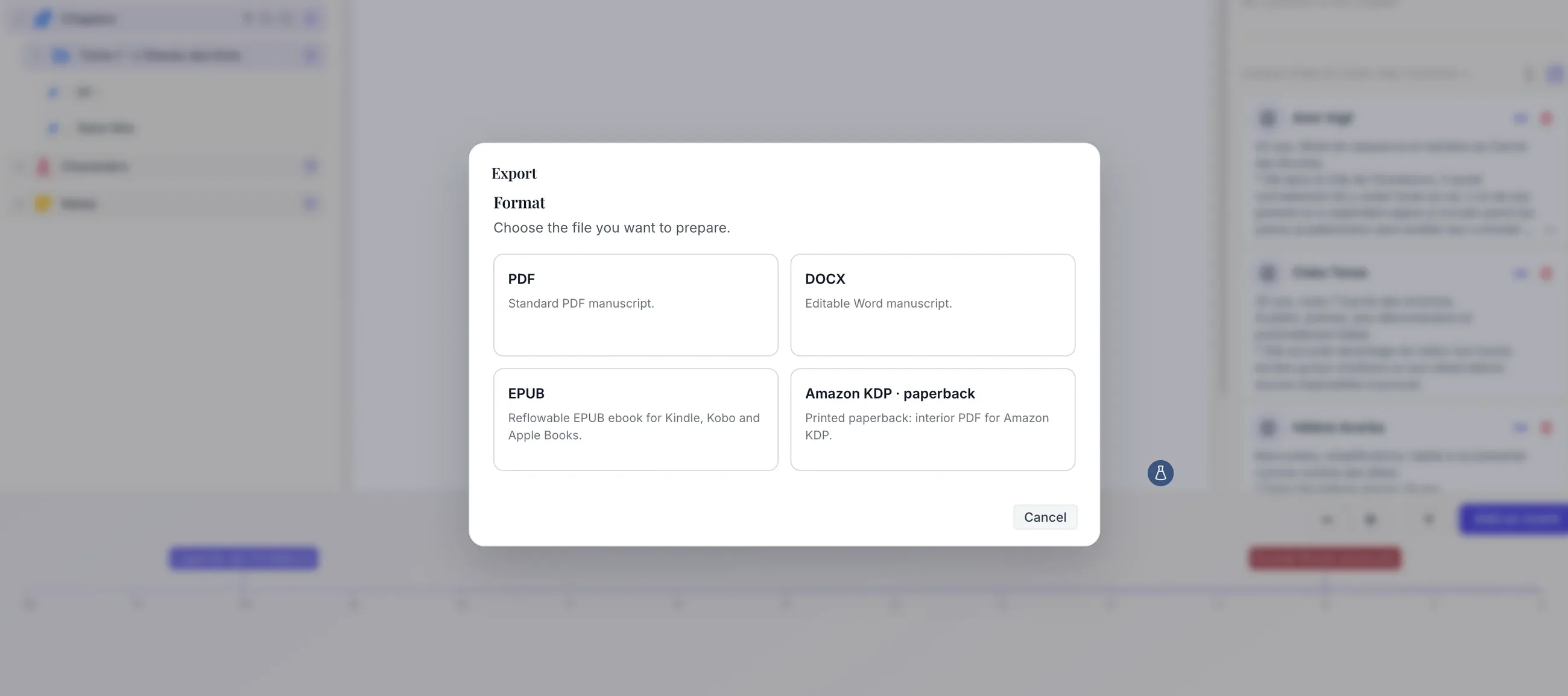
Once you have selected the content to export, Plumelisse offers several output formats.
For a manuscript intended for a publisher, the two relevant formats are PDF and DOCX.
Both contain a similarly structured manuscript, but they serve slightly different purposes.
A PDF preserves the document's layout. Pages, margins, headings and page numbers remain in the same positions when the file is opened on another computer.
A DOCX can be opened and edited using compatible word processors such as Microsoft Word or LibreOffice.
Your choice should primarily follow the submission guidelines of the publisher you want to contact.
**If the publisher specifically requests a PDF or Word/DOCX file, simply choose the corresponding option in Plumelisse.**
If both are accepted, use whichever format best fits the publisher's submission process.
The other formats available in Plumelisse are intended for different purposes: EPUB for digital publishing and the Amazon KDP export for preparing a paperback interior for self-publishing.
Prepare the title page during the export
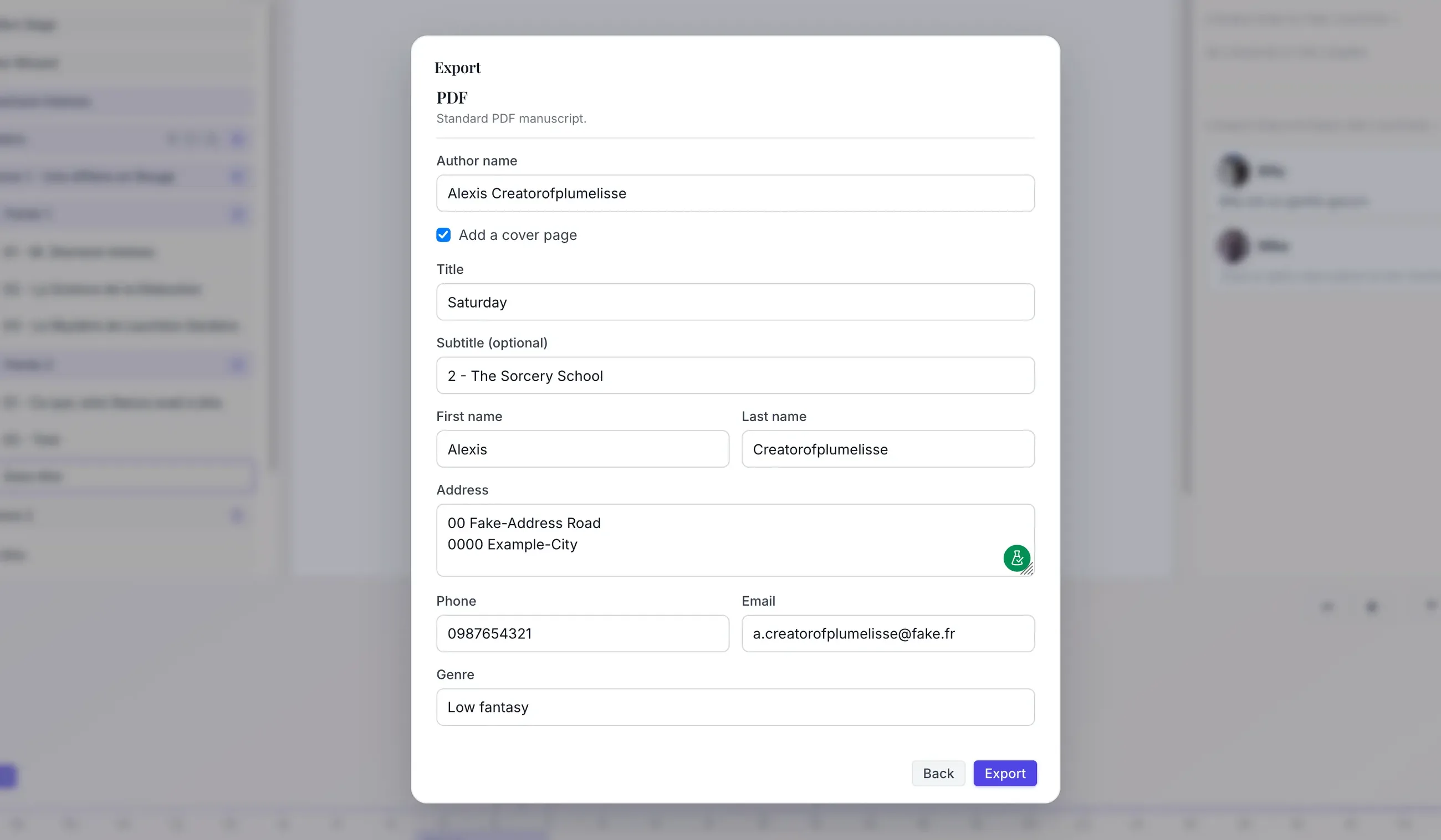
When exporting a project or folder as PDF or DOCX, Plumelisse can also generate a title page.
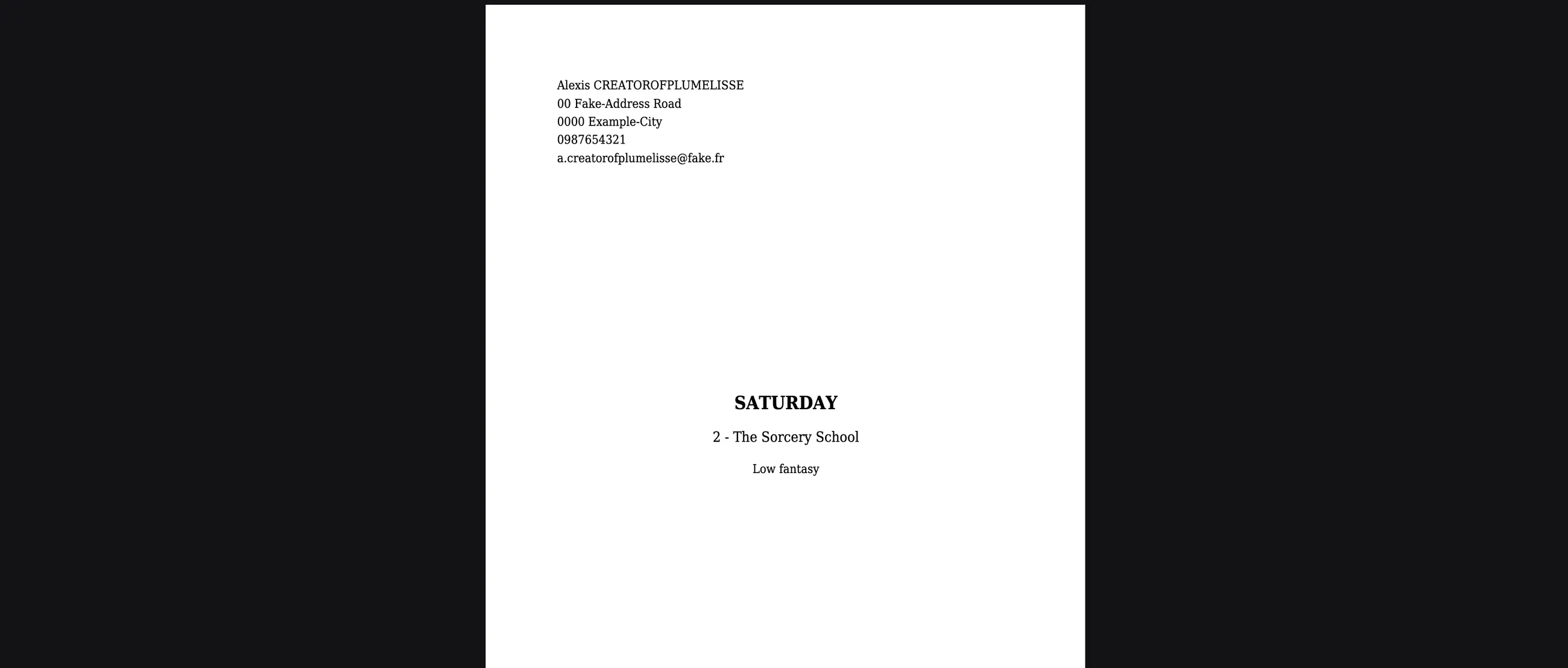
The title page is optional, but it allows the manuscript and its author to be identified immediately.
You can provide the information needed for the document, including the author's name, the manuscript title and an optional subtitle.
The title page can also contain the author's contact information, the type or genre of the work and its length.
The result is deliberately simple.
This is not a commercial book cover. There is no need for an illustration or elaborate graphic design when submitting a manuscript for editorial review.
Its purpose is simply to ensure that anyone opening the document can immediately identify the manuscript and its author.
Plumelisse formats the manuscript automatically
Once the required information has been selected, you do not need to recreate the document manually in Word.
Plumelisse's PDF and DOCX manuscript exports use a simple layout based on:
12-point Times New Roman;
1.5 line spacing;
2.5 cm margins;
left-aligned body text;
consistent first-line paragraph indents;
manuscript page numbering;
footer information identifying the manuscript and its author.
The purpose of this layout is straightforward: make the manuscript comfortable to read rather than imitate the appearance of a printed novel.
You therefore do not need to select a decorative typeface, create binding margins or try to reproduce the page design of a bookstore edition.
If a publisher provides its own formatting requirements, those instructions should of course take priority. Otherwise, the document generated by Plumelisse provides a clean and structured starting point.
Parts and chapters follow the structure of your text
The resulting export also depends on how your novel has been structured inside the editor.
In Plumelisse, Heading 1 and Heading 2 have specific roles when writing a novel.
Heading 1 can represent a major part of the book.
When the manuscript is exported, the part receives its own page with the heading clearly positioned.
Heading 2 represents a chapter.
Each chapter can therefore begin clearly on a new page with its heading emphasized.
This hierarchy prevents you from having to manually rebuild every chapter opening after exporting the manuscript.
Paragraph formatting is also handled automatically using the appropriate indentation and spacing.
Scene breaks are preserved as well
Not every line break represents a new scene.
Plumelisse therefore distinguishes ordinary paragraphs from actual scene breaks.
When you use the *** scene-break command in the editor, Plumelisse inserts an explicit transition between two sections of the chapter.
Blank lines used merely for visual comfort while writing are not converted into large empty areas in the final document.
**The structure you create while writing is therefore used directly to build the manuscript during export.**
Download and check the resulting file
Once the export has been generated, download the document and open it before submitting it.
Even when formatting is automated, a final check is still worthwhile.
Look through the beginning and end of the document as well as a few sections in between.
Check that:
the title page contains the correct information;
every expected chapter is included;
chapters are in the correct order;
part and chapter headings appear as expected;
scene breaks are positioned correctly;
no working notes or temporary information remain in the manuscript;
the document opens normally.
This review can also reveal a final mistake that escaped your previous revisions.
The downloaded file is now the version you are actually going to send to a publisher, so opening it one last time is preferable to submitting it immediately after generation.
The manuscript is ready: how should you submit it to a publisher?
Once you have your PDF or DOCX, the technical preparation is almost complete.
The next step is to read the submission guidelines of the publishing house you want to approach.
This is important because each publisher can define its own process.
Some use online submission forms. Others accept manuscripts by email or may still request a printed copy. They may also require a specific file format or additional material.
Before submitting your manuscript, check:
whether the publisher is currently accepting submissions;
whether your novel fits the genres it publishes;
whether it requests PDF or DOCX;
whether submissions should be made through a form, email or post;
whether a synopsis, author presentation or cover letter is requested.
There is no need to attach documents that have not been requested.
Likewise, avoid adding a specially designed cover, an EPUB or a version typeset like a finished book unless the publisher explicitly asks for one.
**The manuscript exported from Plumelisse is the reading document; any additional material should then follow the publisher's own requirements.**
What if the publisher requests a printed manuscript?
The PDF generated by Plumelisse can also serve as the source for printing when a publisher still requires postal submissions.
In that case, do not automatically modify the document before printing it.
First check the publisher's instructions. Some publishing houses may have specific requirements regarding printing, binding or presentation.
Your PDF then acts as a stable version of the manuscript from which the requested physical copy can be produced.
One Plumelisse project, several possible destinations
Keeping your novel structured inside Plumelisse means you do not need to maintain separate versions of the same text for every possible publication route.
The manuscript remains organized in your project.
When you want to submit it to a publisher, generate a PDF or DOCX manuscript.
If you later choose digital self-publishing, Plumelisse can generate an EPUB.
And if you want to publish a paperback through Amazon KDP, a dedicated export prepares the book interior using a different layout intended for printing.
**The manuscript itself does not need to be reorganized for each destination: the export adapts its presentation to the intended use.**
This distinction matters.
A manuscript submitted to a publisher does not need to look like a finished book. Its main purpose is to make your writing easy to read.
The final book design, cover, typography and production will come much later if the manuscript is selected.
Before submitting, the process can therefore be summarized in eight steps:
finish and structure your novel in Plumelisse;
start the export from your project;
choose PDF or DOCX according to the publisher's guidelines;
enter the relevant title-page information;
generate and download the manuscript;
open the file and check its contents;
read the publisher's submission requirements;
send the manuscript along with only the additional documents requested.
After spending months or years writing your novel, exporting it should not require rebuilding the entire manuscript in another application.
Plumelisse turns the structure you used while writing directly into a manuscript ready to leave your workspace.
All that remains is to choose the publishers you want to approach and follow their individual submission procedures.